
The WhatsApp tutorial explains the rule; this guide masters the tool. Quick recap: outside the 24-hour window after a guest’s last message, WhatsApp only delivers templates approved by Meta. So templates are what keep your check-in instructions, payment requests and reminders deliverable at any hour. Build a small library once, and both you and the assistant draw from it forever.
One clarification that saves confusion: despite the WhatsApp-centric name, templates in Taskbeast are your general message library — they can be used on any channel. Only the WhatsApp ones need Meta’s approval.
Your template library
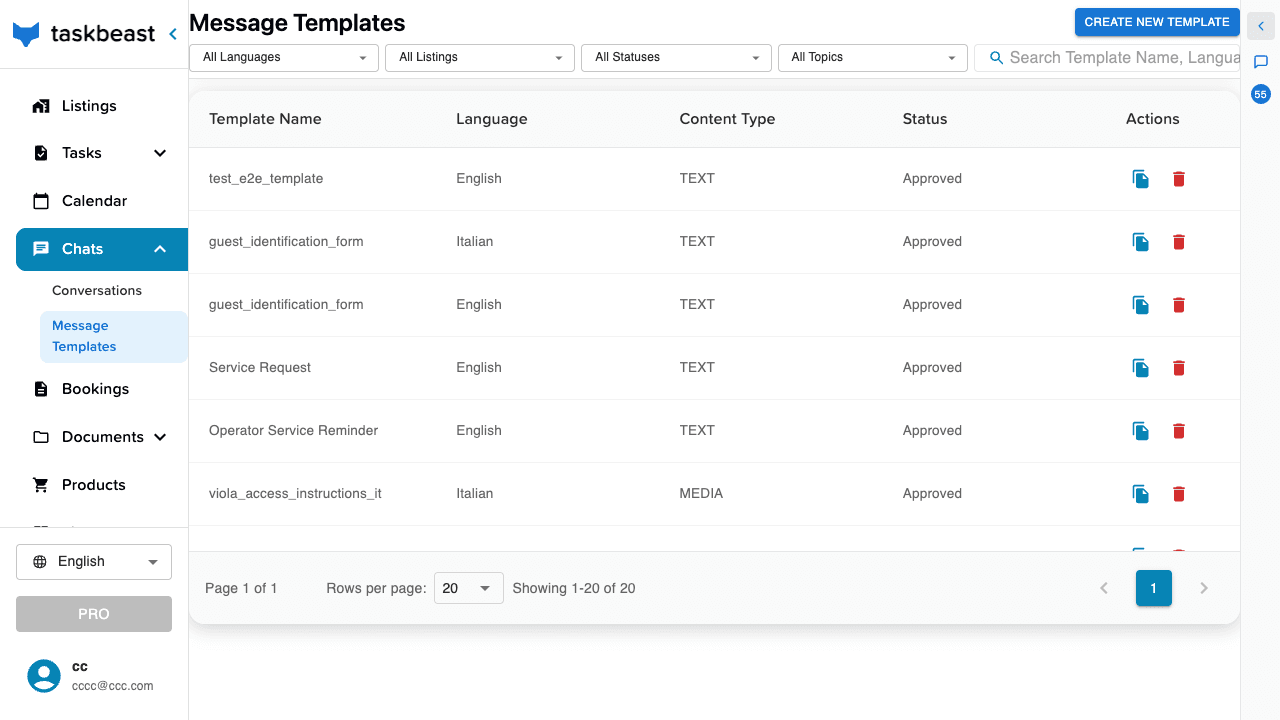
- 1Open Chats → Message Templates. Every template is a row: name, language, content type, and status — the column that decides deliverability.
- 2Filter by language, listing, status or topic, or just type in the search box.
- 3Click a row to open the template: its body, variables, media, the listings it belongs to, and which automated tasks use it.
Build one, step by step
- 1Click Create New Template.
- 2Give it a title (letters, numbers, spaces, dashes) — make it say what it does: “check-in reminder”, “payment request”.
- 3Pick the language. One template = one language; you’ll duplicate it for others later.
- 4Optionally set a topic and select the listings it belongs to.
- 5Write the body. Click Add Variable wherever a value should be filled at send time — the guest’s name, a date, a link. Variables appear as numbered placeholders. Browse suggested variables shows everything available.
- 6Optionally attach media — up to 6 images, 5MB total: an entrance photo turns access instructions from confusing to obvious.
- 7Tick Submit to Meta so it is filed for WhatsApp approval immediately, then click Create.
Variables that fill themselves
This is what makes one template serve every booking. When a template is sent for a booking, Taskbeast resolves its variables automatically:
- Booking facts — guest name, listing name, check-in and check-out dates, times, address…
- Links that are minted on the spot — the check-in documents form, the contract-signing page, the invoice view, a payment link: each guest gets their own personal URL, generated at send time.
- Custom values — anything else you (or the assistant) pass explicitly when sending.
Good to know: Never send a message with an unresolved placeholder — the guest would see raw braces. When you send templates manually, check the preview; the assistant checks automatically.
Approval: what Meta accepts and rejects
After submission the template shows pending — approval usually lands within minutes, occasionally up to 24 hours. Taskbeast checks your template against Meta’s formatting rules before filing, so most rejections are prevented; when Meta still rejects one, the status says so and the reason is shown.
- Keep variables surrounded by real text — a body that starts or ends with a bare placeholder, or chains placeholders together, gets rejected.
- Keep it concise and concrete — very long bodies and vague promotional blurbs are rejection magnets.
- To fix a rejected template, open it, adjust the body and re-submit — or simply tell the assistant to repair and re-file it.
Good to know: Only approved counts. A pending template cannot reach a closed window yet — don’t schedule a critical automation on it until the status flips.
Send one by hand
- 1In a conversation, click the + next to the composer and choose Templates.
- 2Pick the template; variables are filled from the booking automatically. Send.
- 3Outside the 24-hour window this is the only path — the composer itself reads “Templates only (24h)” and a banner explains why.
One per language, linked to your tasks
- 1Use the duplicate icon in the list to clone a template, then switch the copy’s language and translate the body — approval is per template, so file each one.
- 2Link templates to automated tasks (task detail → Link template): a task with an approved template can always deliver, whenever it fires.
- 3From a template’s detail page, New task with template starts a new automation with it pre-attached.
More tutorials
Connect Airbnb and Booking.com
Import your listings from Airbnb and Booking.com, keep prices and availability in sync, manage rate plans, and merge the same apartment across channels.
Send your first WhatsApp message
Start messaging guests right away with the shared WhatsApp sender, then register your own WhatsApp Business number when you are ready.
A phone number for your rentals
Buy a dedicated number in minutes: calls from guests reach you with a professional greeting, and the same number can power WhatsApp.