
Connecting your channels is the first thing to do in Taskbeast. Once Airbnb and Booking.com are connected, your bookings, guest messages, prices and calendars all flow into one place — and every change you make in Taskbeast is pushed back to the channels automatically.
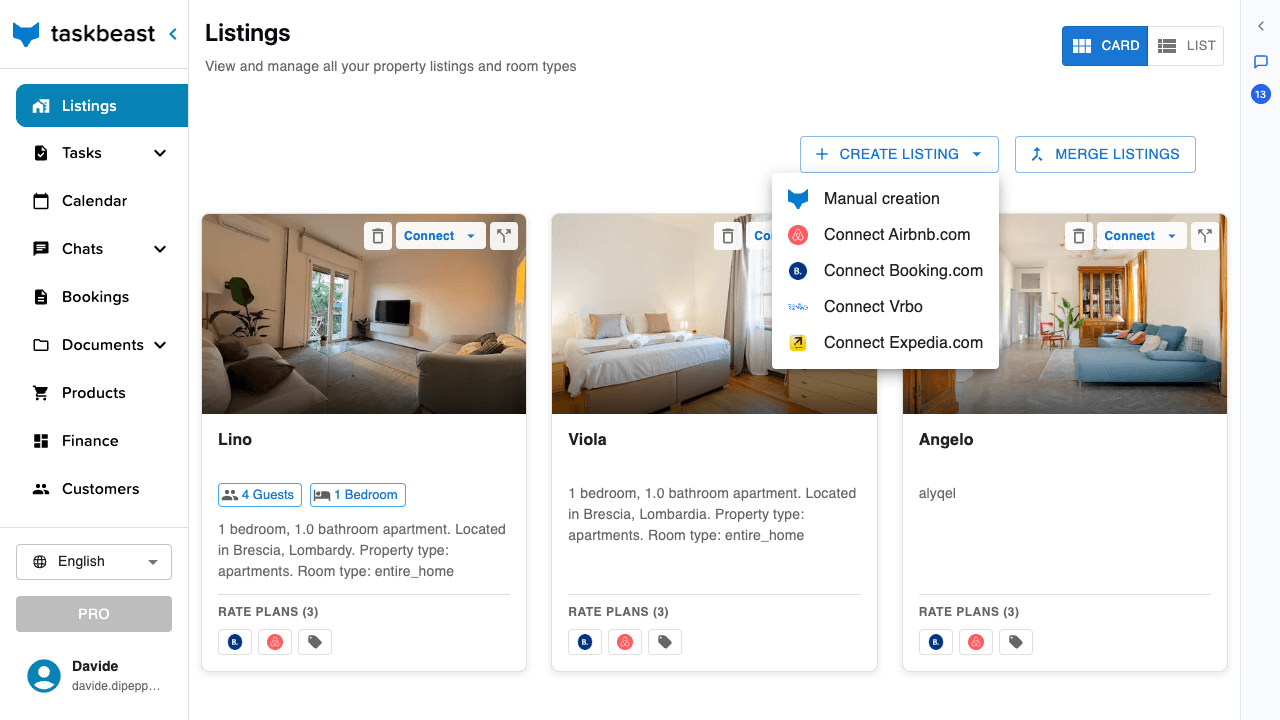
Connect Airbnb
- 1Open Listings in the left sidebar.
- 2Click Create Listing and choose Connect Airbnb.com.
- 3You are taken to Airbnb to log in and authorize Taskbeast. Approve the connection.
- 4Back in Taskbeast, your Airbnb listings are imported automatically — each one appears as a listing card with an Airbnb badge.
Connect Booking.com
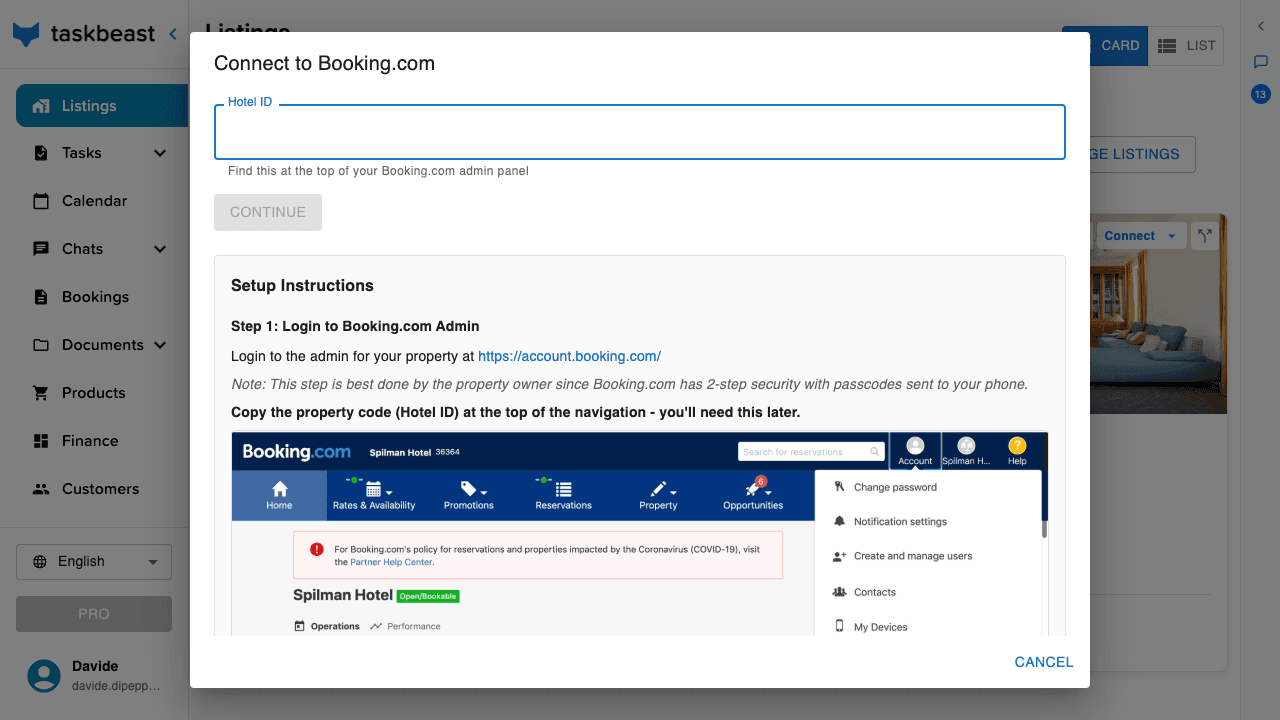
- 1On the same Listings page, click Create Listing and choose Connect Booking.com.
- 2Enter your Hotel ID — the property code shown at the top of your Booking.com admin (extranet). The dialog’s own setup instructions show exactly where to find it.
- 3Match each Booking.com room to a room type and rate plan when asked.
- 4Confirm and wait a moment while the channel is set up — a progress screen shows while everything is provisioned.
Good to know: You can also connect a channel directly from an existing listing card: every card has its own Connect button, and channels the listing already uses are greyed out.
Prices and availability stay in sync
After connecting, Taskbeast becomes the single source of truth. When a guest books on any channel, the nights are blocked everywhere else within moments. When you change a price or close dates in the Taskbeast calendar, the update is pushed to Airbnb and Booking.com automatically — there is nothing to trigger manually.
Update rate plans with percentage deltas
If the same apartment sells through several rate plans (for example a flexible rate on Airbnb and a non-refundable rate on Booking.com), you don’t have to price each one by hand.
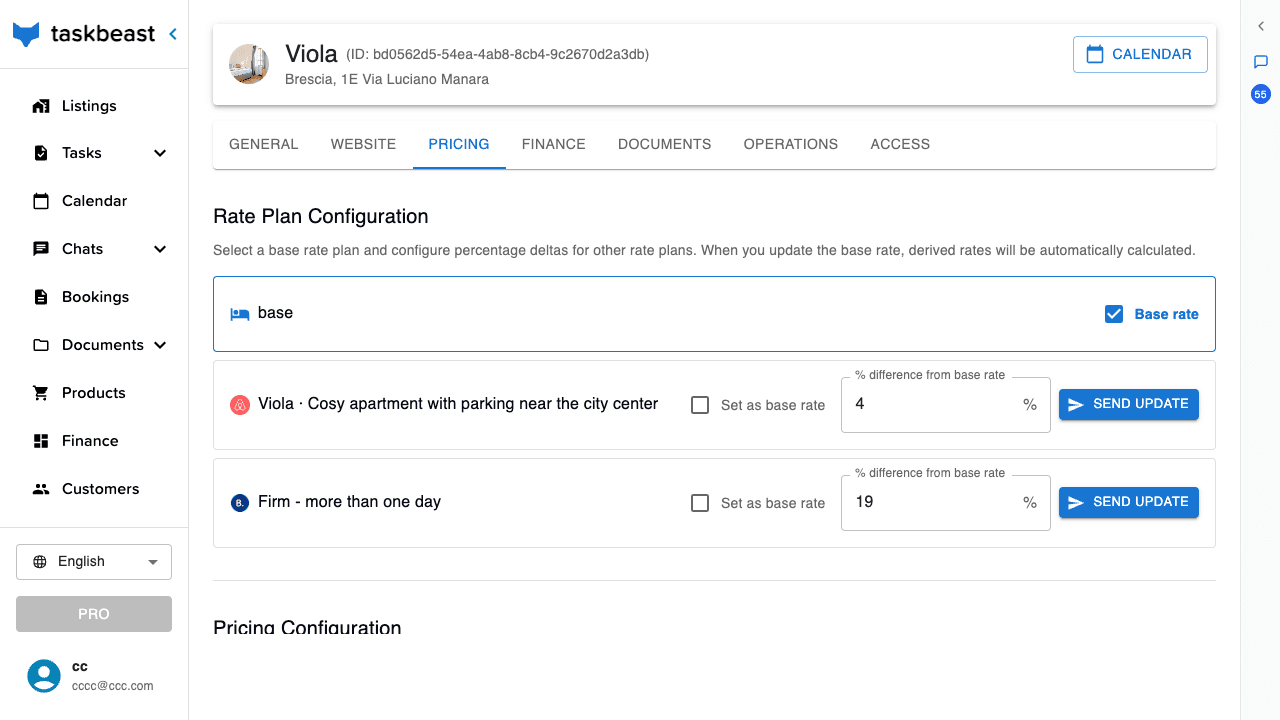
- 1Open the listing from Listings and go to the Pricing tab.
- 2Tick Base rate on the plan you want to price manually — every other plan will follow it.
- 3On each derived plan, enter a % difference from base rate (for example −10 for a non-refundable discount).
- 4Click Send Update. The derived prices are recalculated and pushed to the channels right away.
Merge the same apartment across channels
If the same physical apartment is listed on both Airbnb and Booking.com, merge the two listings so they share one calendar, one guest history and one set of automations.
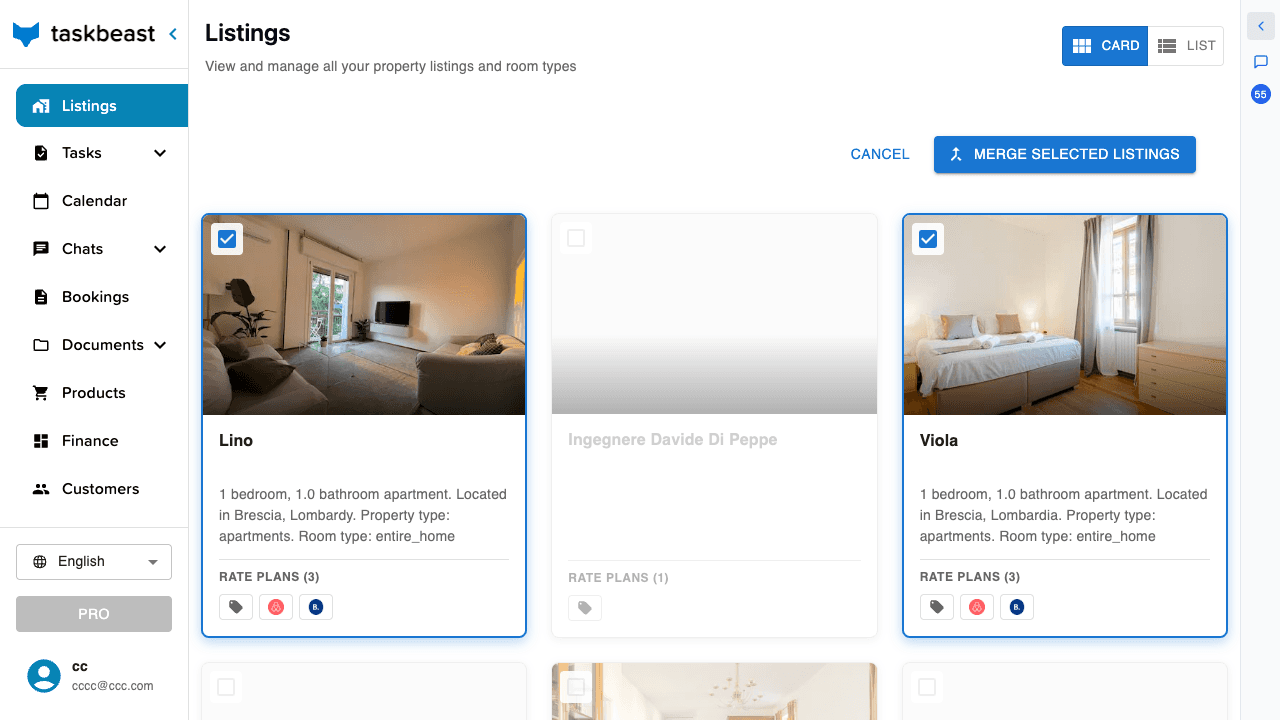
- 1On the Listings page, click Merge Listings. Checkboxes appear on every card.
- 2Tick the two listings that are the same apartment — they must be on different channels.
- 3Click Merge Selected Listings and confirm the pairing in the dialog.
Good to know: Merging never deletes anything — the two channel listings keep selling as before, but from one shared calendar, so double bookings can’t happen.
More tutorials
Send your first WhatsApp message
Start messaging guests right away with the shared WhatsApp sender, then register your own WhatsApp Business number when you are ready.
A phone number for your rentals
Buy a dedicated number in minutes: calls from guests reach you with a professional greeting, and the same number can power WhatsApp.
Message templates: your key to WhatsApp deliverability
Build templates that Meta approves, fill them with variables that resolve themselves, and make sure your messages always reach guests — even outside the 24-hour window.