
Two different lists define your team in Taskbeast, and telling them apart saves a lot of confusion. Property access controls who can open the dashboard and what they can see there. The staff roster tells the assistant who your cleaners, managers and handymen are — who “the cleaner” means when you say “ask the cleaner”, and who is allowed to talk to the assistant about a listing on WhatsApp. This guide sets up both.
Give someone dashboard access
- 1Open the listing from Listings and go to the Access tab.
- 2Type the person’s email, optionally a name, and pick their level (it defaults to Operator).
- 3Click Add. If the email already has a Taskbeast account, they get access immediately; if not, an account is created for them and an invite email is sent automatically.
- 4To change someone’s level later, just change the dropdown in their row — it saves on the spot. The red bin revokes access.
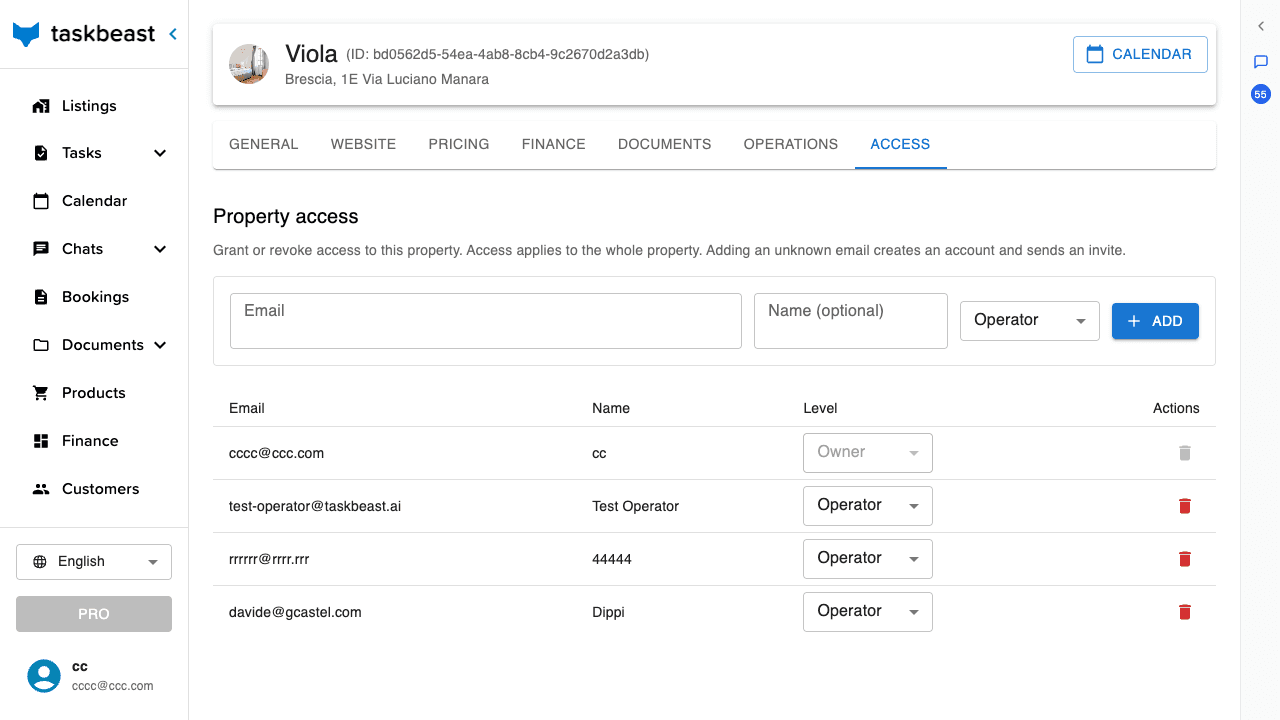
Good to know: Access is granted for the whole property, even though the tab lives under a listing’s settings — every listing of that property is covered by the same grant. The same person can hold different levels on different properties (say, Owner of one and Operator on another); each property is judged on its own.
What each level can do
- Owner — everything, including granting or changing other owners. The person who created the property is always an owner.
- Manager — everything an owner can do in day-to-day operation: money, guest data, documents, calendar, settings.
- Operator — field staff. They see their work: tasks and operational information. They do not see money (Finance, Transactions, invoices, prices), guests’ personal data, documents, and they cannot change the calendar. Pages like Finance, Products, Customers and Documents are hidden from them entirely.
Good to know: When in doubt, start people as Operator and promote later — a wrong Operator sees too little, a wrong Manager sees everything.
Build the staff roster
The roster lives per listing and holds three lists: Cleaners, Managers and Handymen. This is the list the AI uses — when an automation says “message the cleaner”, it looks here.
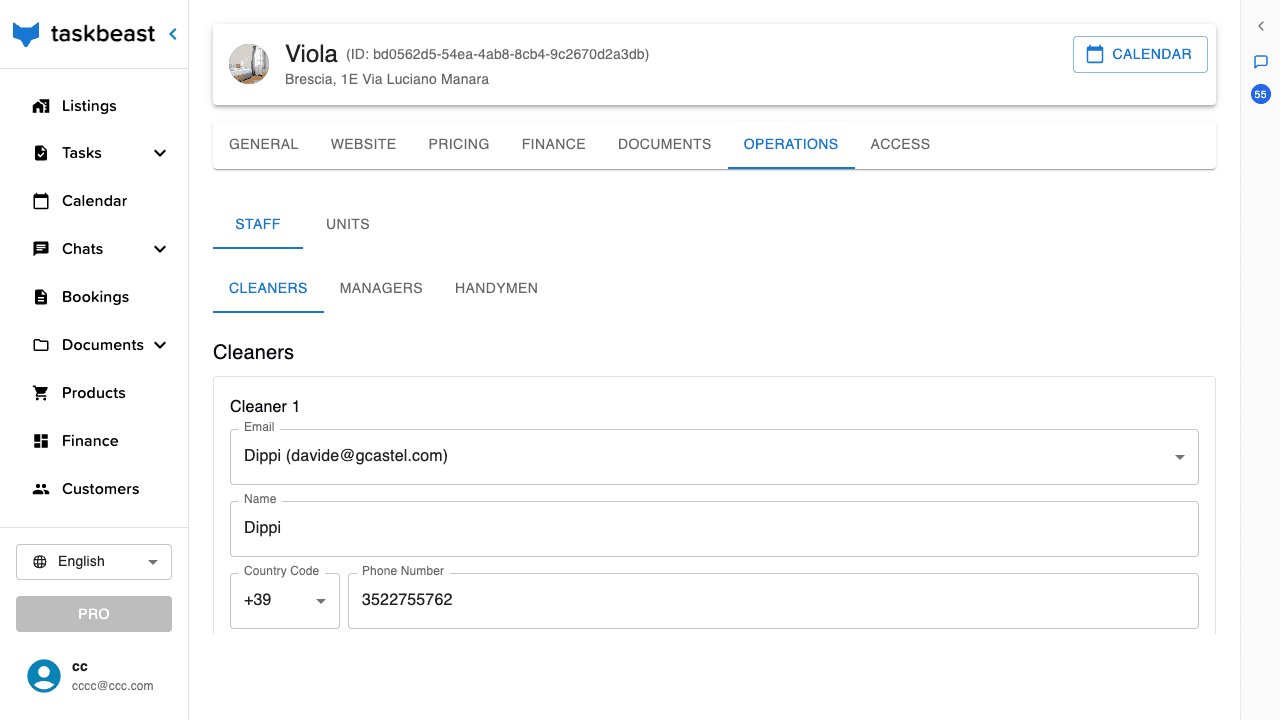
- 1Open the listing from Listings and go to the Operations tab, Staff section.
- 2Pick the role list (Cleaners / Managers / Handymen) and click Add Cleaner (or the matching button).
- 3Choose the person’s email from the picker — it lists the people who already have access on the property, and auto-fills their name and phone. Add the person in the Access tab first if the picker is empty.
- 4Check the phone number (country code + number): this is the WhatsApp number the assistant will message and recognize.
- 5Click Save Changes.
Roster vs access — who needs which
- A cleaner who only uses WhatsApp needs a roster entry (so the assistant can message them and recognize their number when they write). Add them to Access as Operator first so the picker finds them — they never need to open the dashboard.
- A co-host managing bookings needs Access as Manager; add them to the roster too if the assistant should be able to contact them as “the manager” of a listing.
- The same human can be cleaner of one listing and manager of another — the roster is per listing, and the assistant treats them accordingly on each.
Good to know: Removing someone from the roster stops the assistant from contacting them for that listing, but does not remove their dashboard access — that is the Access tab’s red bin. For a full offboarding, do both.
Give staff real to-dos, not just messages
Beyond chat, Taskbeast tracks operator tasks — physical work someone marks as done: a cleaning, a repair, a key handover.
- 1The fastest way: ask the assistant — “assign the checkout cleaning of Saturday to Laura”. It creates the task, assigned to the right person from the roster.
- 2Your staff see their tasks in the Task Manager (operators see a simplified board with only their pending and completed work).
- 3Ask the assistant “what does Laura still have open?” for an instant status across listings.
More tutorials
Collect guest identities automatically
Set up the online check-in form, choose which details and documents guests must provide, and let automated messages do the chasing.
Invoices and receipts
Configure how your invoices look, keep them updated as you add extra services, and share them with guests in one click.
Smart locks: automatic access for your guests
Connect your smart locks, assign them to rooms, issue door codes that only work for the stay, and let your automations hand guests the keys.