
Most hosts need guest details before arrival — names, birth dates, document numbers, sometimes a photo of the ID itself. Taskbeast collects all of it with a secure online check-in form that guests fill from their phone, and automated messages that send and chase the form for you.
Choose what to collect
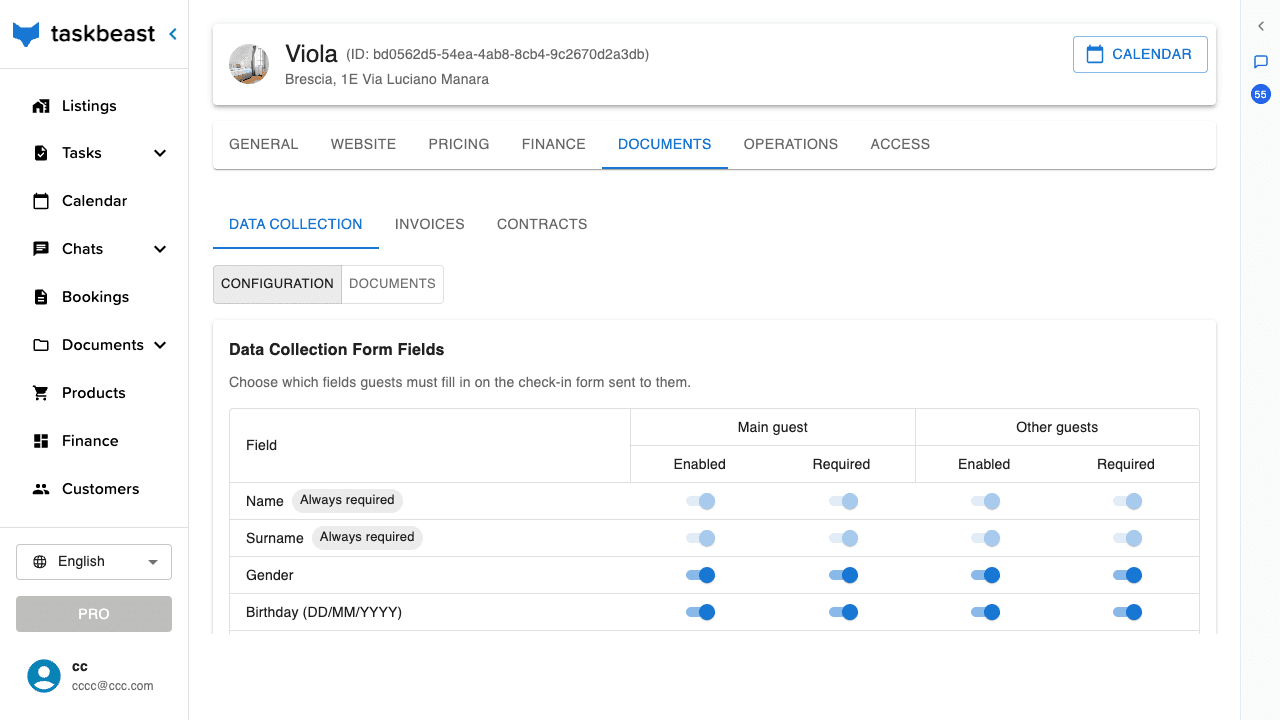
- 1Open the listing from Listings and go to the Documents tab, Data Collection section.
- 2In Data Collection Form Fields, switch each field on or off — separately for the main guest and for the other guests of the group.
- 3Mark fields as required if the form must not be submitted without them.
- 4For identity documents, enable Ask for upload and choose whether guests photograph the front side only or both sides.
- 5Click Save fields.
Send the form automatically
The check-in form has a personal link for every booking. You could copy it by hand from the booking — but the whole point is to never do that.
- 1Create a task in Tasks → Task Manager (see the automated-tasks tutorial) triggered right after a booking is created, or a few days before check-in.
- 2In the task description, ask it to send the guest the check-in form and to insert the form link. Message templates have a ready-made variable for the documents form link.
- 3Optionally add a second instruction: if the guest hasn’t submitted the form two days before arrival, remind them. The AI keeps track and only chases guests who haven’t finished.
The form link: the variable, the password, the validity
The link each guest receives is personal to their booking and is generated at send time — you never build or paste a URL by hand. Three things worth knowing about it:
- The template variable — in the template builder, click Add Variable and pick Guest identification form from the Documents group of the suggested variables. At send time the placeholder becomes that booking’s own form URL. Links are always resolved on the server at the moment of sending, so a stale or copied URL can never reach the wrong guest. The assistant uses the same mechanism when you say “send Anna the check-in form”.
- Validity — the link doesn’t expire and always opens that booking’s form: re-sending it later leads to the same place, with everything already submitted still in place. There is nothing to regenerate if the guest asks for it again.
- Password protection (optional) — you can require a code before the form opens: enable password protection in the listing’s Documents tab, next to the auto-submit setting. The code is the first 6 characters of the booking reference (shown in the booking details), so every booking has its own — share it with the guest along with the link.
Good to know: Leave password protection off unless you have a reason for it — every extra step before the form costs a few submissions. The link being per-booking already keeps strangers out of other guests’ data.
Track who has submitted
- 1Open Documents → Data Collection in the left sidebar for the account-wide view.
- 2Each row is a booking: the Forms column shows how many guests have submitted (for example 2/2), and clicking a row opens the submitted details.
- 3Need to fix a typo in a guest’s data? Open the form from the row and correct the field — no need to bother the guest again.
More tutorials
Invoices and receipts
Configure how your invoices look, keep them updated as you add extra services, and share them with guests in one click.
Your team: access levels and the staff roster
Invite co-hosts and field staff with the right level of access, build the cleaner/manager roster the AI relies on, and understand exactly who can see what.
Smart locks: automatic access for your guests
Connect your smart locks, assign them to rooms, issue door codes that only work for the stay, and let your automations hand guests the keys.