
Late checkouts, airport transfers, breakfast baskets, mid-stay cleanings — extras are the easiest revenue you are not charging for yet. In Taskbeast you define each extra once as a product; selling it to a guest is then two clicks (or one sentence to the assistant), payment collection is a tracked Stripe link, and the line lands on the guest’s bill and invoice by itself.
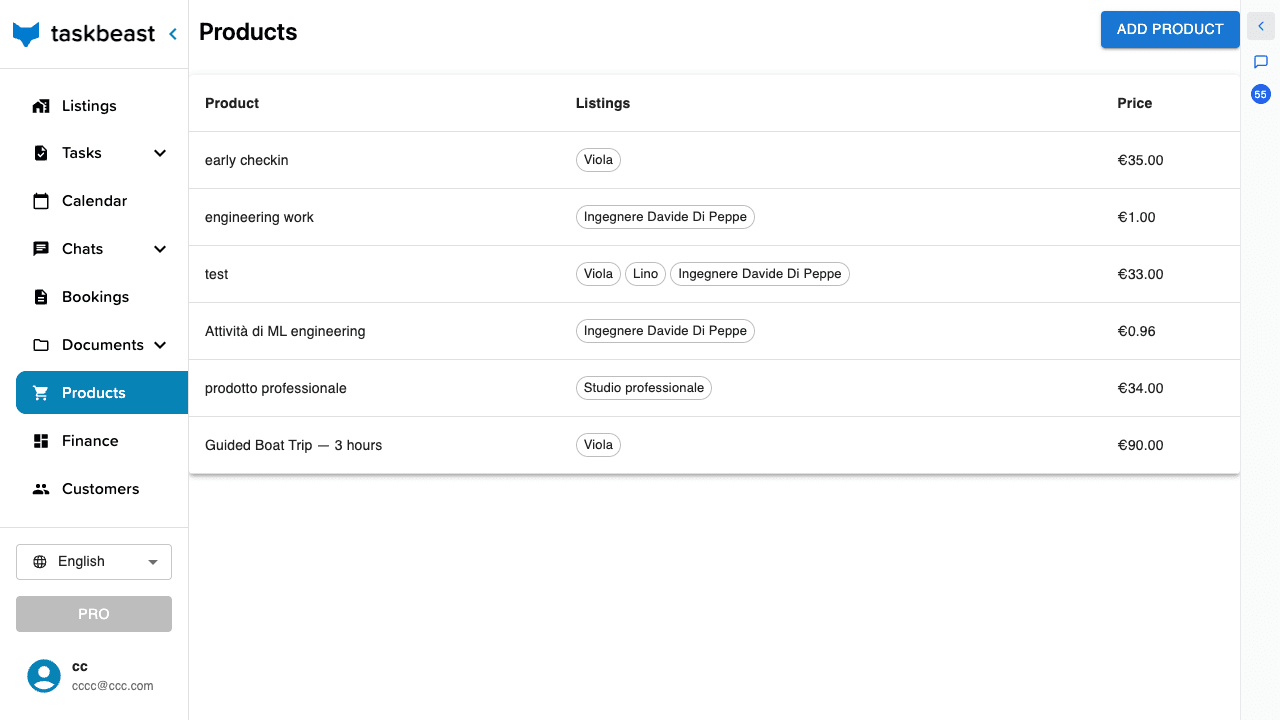
Build your catalog
- 1Open Products in the left sidebar and click Add Product.
- 2Give it a name and a short description guests will understand.
- 3Select the listings it applies to — one product can span several apartments.
- 4Set the price (the field shows your currency) and save. VAT handling follows your listing’s fiscal configuration.
Charge a guest for an extra
The fastest path is the assistant: “add a late checkout to Anna’s booking and send her the payment link”. What happens under the hood — and what you can equally do by hand from the booking:
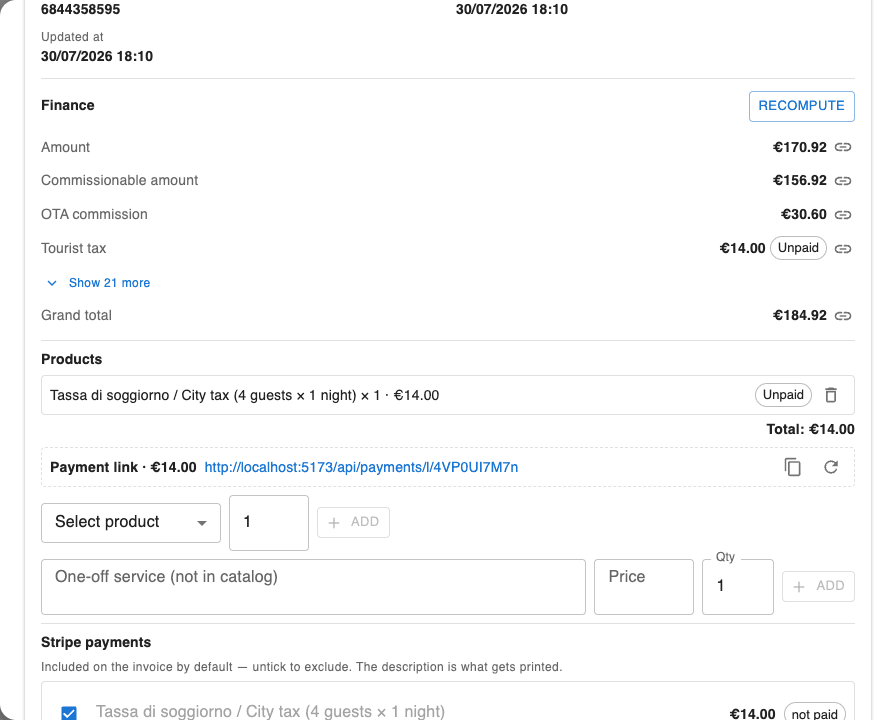
- 1The product is added to the booking as an order item — every booking carries an order that collects its extras.
- 2The order’s Stripe payment link updates to match the new total (Stripe must be connected — see the get-paid tutorial). Share it with the guest in the conversation.
- 3When the guest pays, the order is marked Paid automatically — payment recorded, daybook entry written. No reconciliation by hand.
- 4The next invoice draft for the booking includes the line — nothing to re-type (see the invoices tutorial).
Good to know: To check whether something was paid, don’t scroll the chat — the order knows. Ask the assistant “has Anna paid for the late checkout?” or open the booking’s orders.
Sell to people who aren’t staying
Orders don’t need a booking. A neighbour buying a parking spot, a returning guest ordering a transfer for friends — that is a standalone order for a customer.
- 1Open Customers in the left sidebar. First time? Click Sync from bookings — it builds your customer book from every guest who ever stayed.
- 2Find the customer (search by name, email or phone) or click Create customer for someone new.
- 3Open their card with the + at the start of the row: their contacts, their history, and every order and stay with amounts.
- 4In the Create new box, pick a listing and click New product order — add the items and the order gets its own tracked payment link, exactly like a booking’s.
- 5From the same card you can also start a New booking for them — their details are pre-filled.
Know what sells
- 1On Products, click any product row to open its sales view: every sale with date, quantity, customer, the booking or order behind it, and whether it was invoiced.
- 2Click a sale to open the underlying booking or order.
- 3Need to change the price or listings? Edit details inside the same dialog.
More tutorials
Prices, manual bookings and your own booking website
Set nightly prices in the calendar, register offline bookings, publish your listing on your own direct-booking page, and keep every rate plan aligned.
Get paid: Stripe, your booking website and payment tracking
Connect Stripe once and everything can collect money — your direct-booking website, payment links, product orders — with every euro tracked on the Transactions page.
Track your numbers with the Finance page
Build your own financial variables, chart them, shape the bookings and expenses tables to your workflow, and save it all as reusable views.