
Your past conversations are a goldmine: they contain the way you welcome guests, the door codes, the check-in rules, the answers you have already written a hundred times. Taskbeast imports that history and analyzes it, so the AI answers guests the way you would — from day one. Everything it learns is laid out for you to review in the Task Learner.
Airbnb chats arrive on their own
There is nothing to do for Airbnb: when you connect it (see the channels tutorial), the message history of your bookings is imported together with the reservations. Every conversation appears in Chats → Conversations, attached to its booking and listing.
Import your WhatsApp chats
- 1Open Channels → Whatsapp and switch to the Import Chats tab. A QR code appears.
- 2On your phone, open WhatsApp → Settings → Linked Devices → Link a Device, and scan the QR code. (No camera at hand? Use Link with phone number instead to get a pairing code.)
- 3Wait while your chats load — a counter shows the progress.
- 4Tick the conversations you want to bring in, and pick the listing they belong to.
- 5Confirm the import. The selected chats appear in Chats → Conversations under that listing, ready to be analyzed.
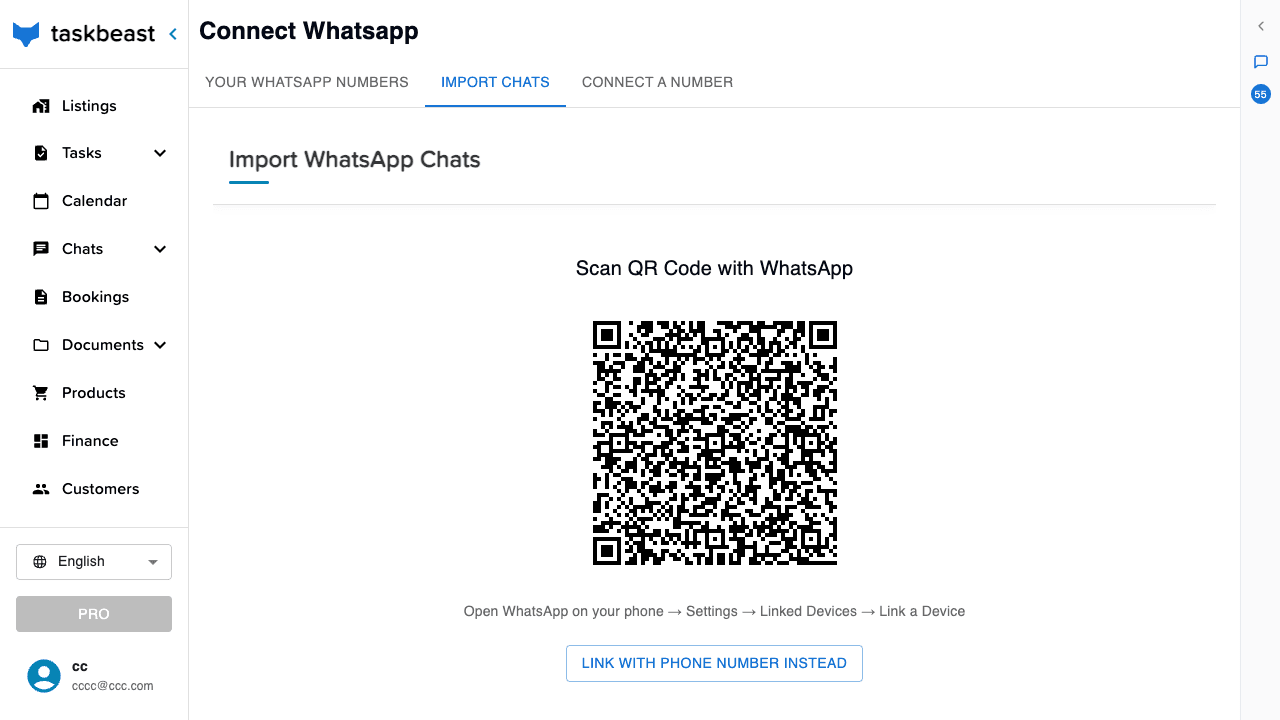
Good to know: Linking works exactly like WhatsApp Web and is read-only for the import: nothing is sent from your account, and you can disconnect at any time.
Run the analysis
- 1Open Tasks → Task Learner in the left sidebar.
- 2Pick the listing at the top left, then click Analyze.
- 3The analysis reads the listing’s conversations and takes a few minutes. When it finishes, the listing shows a Ready badge and the learned material appears below.
Find your way around the Task Learner
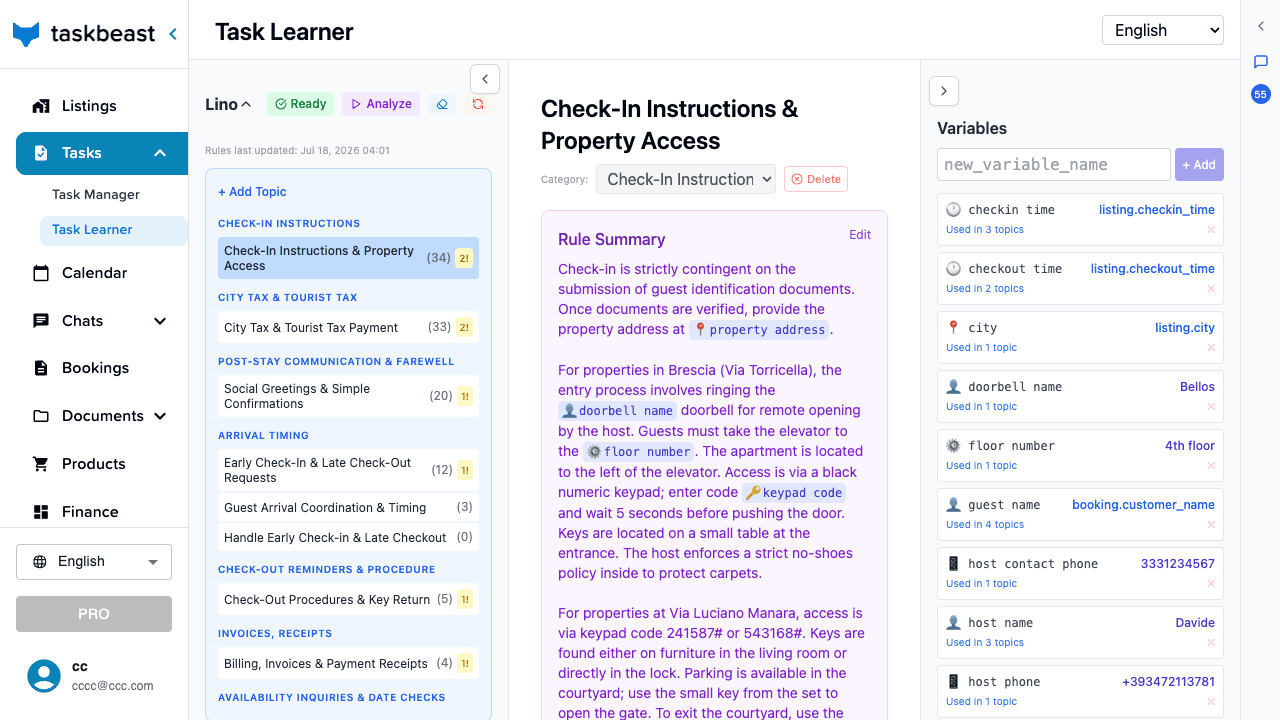
The page has three panels, left to right:
- Topics — everything learned from your chats, grouped by category (check-in instructions, city tax, arrival timing, checkout…). The number next to each topic says how many real conversations back it.
- Rule Summary — the distilled rules for the selected topic, written in plain language: how check-in works, which door code applies to which address, your no-shoes policy. Click Edit to correct or extend a rule — this is exactly what the AI follows when it answers guests.
- Variables — reusable facts (check-in time, door codes, the host’s phone…) that appear as small chips inside the rules. A variable can hold a fixed value or point at a listing field, so one edit updates every rule that uses it.
Review the examples behind each rule
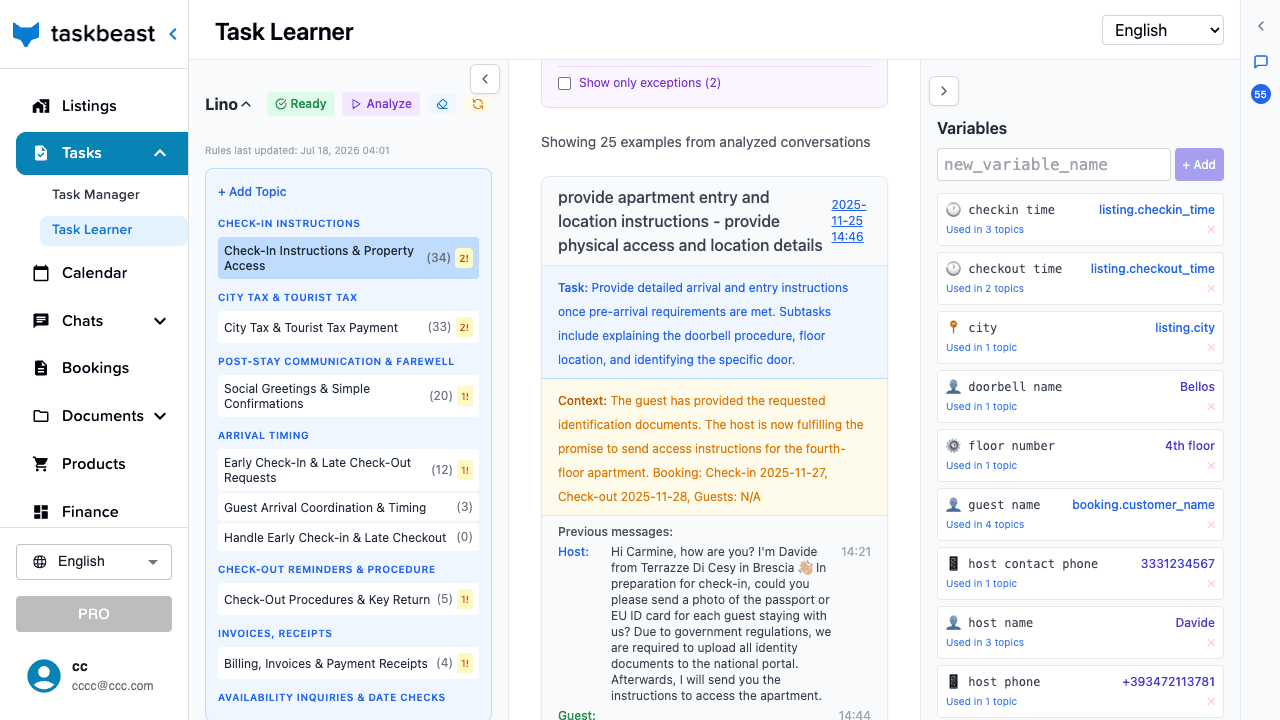
Scroll below a topic’s Rule Summary and you find the actual exchanges the rule was learned from — each example card shows the situation, the context and the messages that were exchanged.
- 1Read through the examples to check the AI understood you correctly.
- 2Use Exclude on an example that shouldn’t be followed (a one-off exception, an outdated answer) — the rules recompute without it.
- 3Tick Show only exceptions to focus on the unusual cases.
Good to know: Made a change the assistant should pick up right now? Use the Clear AI cache button next to the listing name — otherwise your edits are picked up automatically within a few minutes.
More tutorials
Autopilot: when the AI replies alone, and when it asks you first
Decide exactly how much freedom the AI has — per conversation, per topic and per listing — and approve every message it drafts when you keep it on a short leash.
Create your first automated task
Build a task from the UI, understand every option in the form, link an approved message template — or just describe the automation to the Cowork chat and let the assistant set it up for you.
Your AI co-host, one voice note away
Talk to your assistant on WhatsApp exactly like a colleague — a voice note is all it takes to send payment links, brief the cleaner or pull up your numbers.