
Your Taskbeast assistant doesn’t live only in the dashboard. It also answers on WhatsApp — and it works like a capable colleague: you tell it what you need, in your own words (or your own voice), and it does the work in Taskbeast for you.
In the dashboard: the Cowork chat
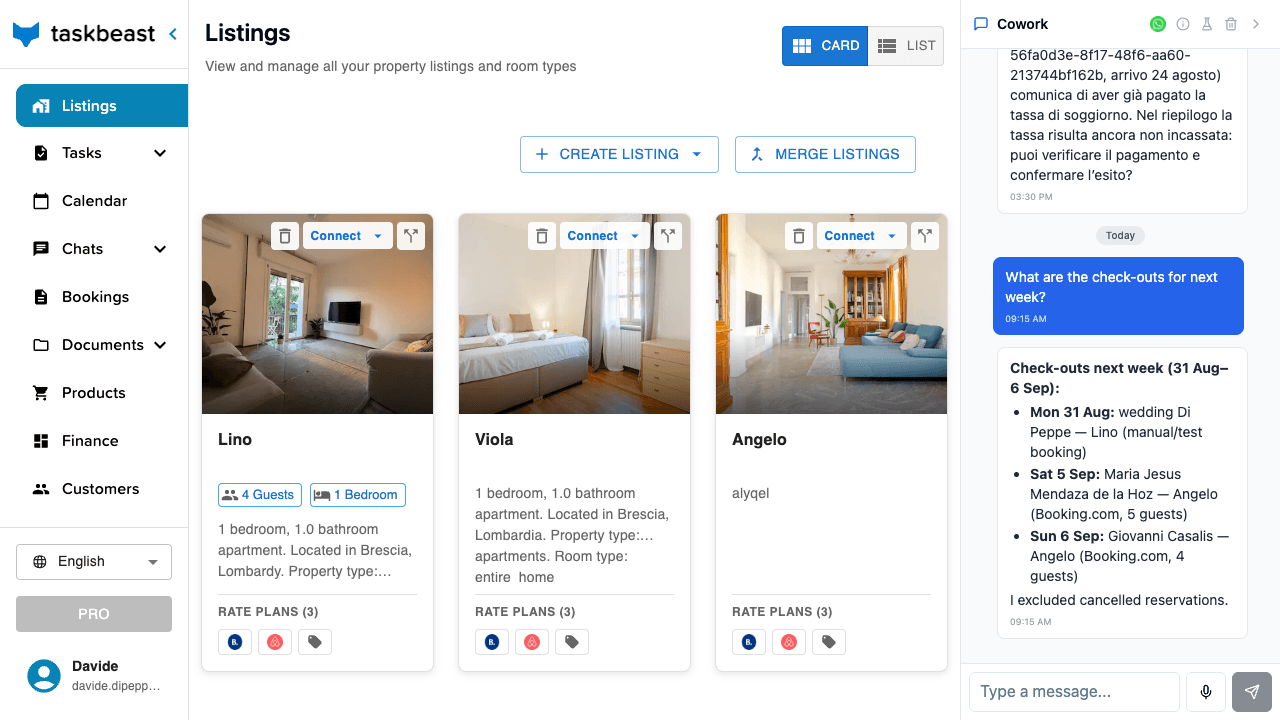
The Cowork chat sits in the right-hand sidebar on every page of the dashboard. Open it and just write — the welcome card lists what it can do, and the suggestion chips are real requests you can tap.
On your phone: the same assistant on WhatsApp
The same conversation continues on WhatsApp, so you can run everything from your pocket. Two ways to open it the first time:
- From the Cowork chat — click the green WhatsApp icon at the top of the sidebar: WhatsApp opens with a chat to your assistant’s number, ready to send.
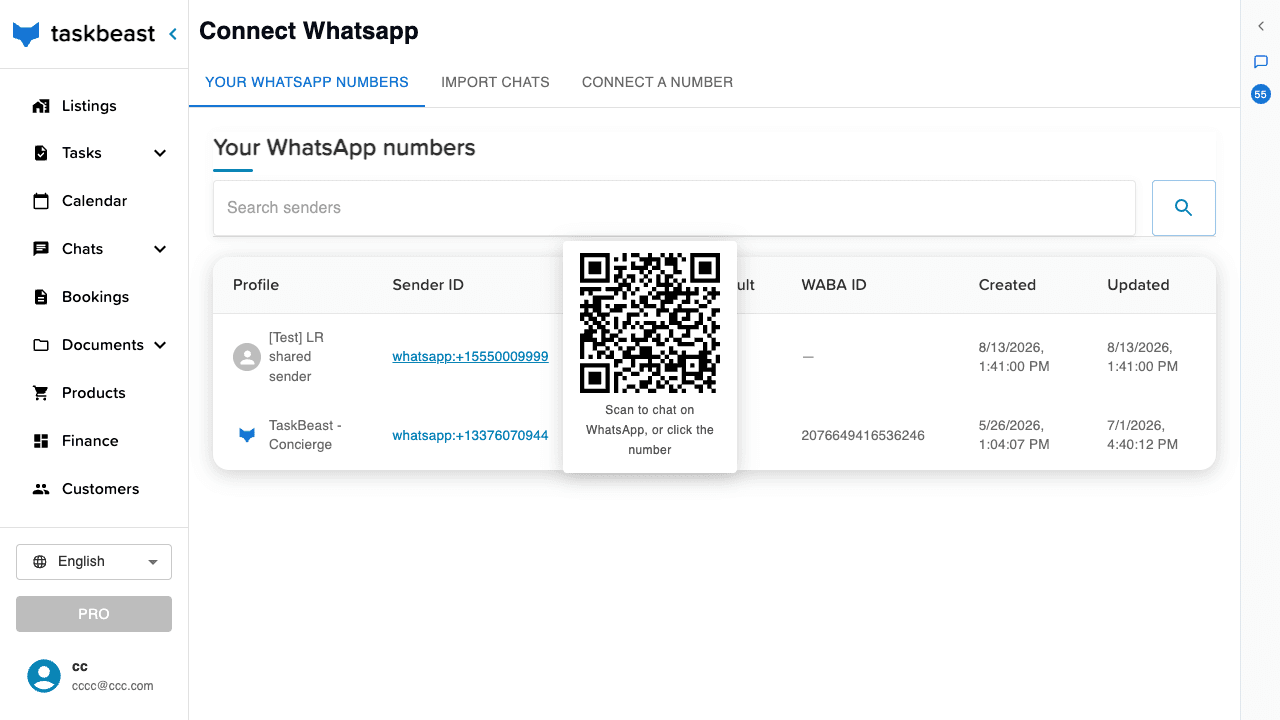
- With the QR code — open Channels → Whatsapp and hover over your number in the Sender ID column: a QR code appears. Scan it with your phone’s camera and the WhatsApp chat opens. (Clicking the number does the same on the device you’re on.)
Good to know: Write from the phone number registered on your Taskbeast account — that’s how the assistant recognizes it’s you and unlocks host powers. Anything you start on WhatsApp continues in the dashboard sidebar, and vice versa.
Send a voice note — our favorite way to work
Voice is the mode we recommend the most, because it’s simply faster: thirty seconds of talking carries more detail than five minutes of typing on a phone, and you can do it while driving between apartments or carrying luggage up the stairs. Just record it as it comes to your mind — no need for structure or keywords:
“The boiler in Viola is fixed, tell tonight’s guest everything is ready, and move tomorrow’s cleaning to 2 pm.”
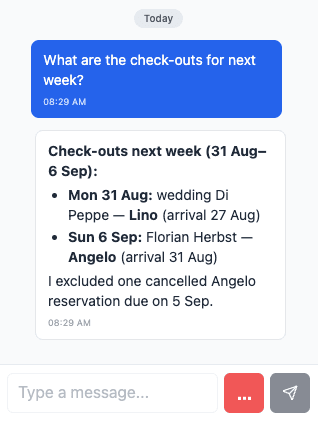
The assistant understands voice notes exactly like text — same languages, same actions — untangles the requests, and replies with what it did. On WhatsApp, use WhatsApp’s own microphone button; in the dashboard, the Cowork composer has its own mic button that turns red while recording.
One message, several actions
You don’t need to split requests into separate commands. Say it all at once:
“Anna asked for a late checkout tomorrow — send her a payment link for €30 and remind the cleaner that checkout moves to 1 pm.”
From that single message the assistant creates the payment link, sends it to Anna on her own conversation, messages the cleaner on WhatsApp, and reports back to you when both are done. If the cleaner replies, the answer is relayed to you too.
Good to know: For anything delicate — changing prices, filing documents, sending money-related messages — the assistant first shows you exactly what it is about to do and waits for your OK. A quick “yes” is all it needs.
What you can ask it to do
The assistant works with the same tools you have in the dashboard, so “doing” means the real thing: messages are actually delivered, links actually collect money, prices actually change on the channels. These are the six families of requests it handles — with what happens behind the scenes for each:
- Messaging and coordination — it writes to guests and staff on your behalf, each on their own conversation, and can wait for the answer and bring it back to you: “Ask the cleaner if the apartment is ready for tomorrow’s check-in and tell me what she says.” You never copy messages between chats — it relays in both directions and always tells you which booking or apartment an answer refers to.
- Collecting money — it mints payment links and puts extra charges on the guest’s bill: “Charge the Kellers €40 for the airport transfer.” The extra is added to their booking, the payment link lands in their conversation, and because the link is tracked you can later ask whether it was paid — no spreadsheet needed.
- Invoices and documents — it drafts invoices straight from a booking and shares the guest-facing link: “Send Marco the invoice for his stay.” It can also chase what’s missing — check-in forms, ID uploads, contract signatures. Fiscal steps stay safe by design: it always drafts first and transmits only when you explicitly say so.
- Prices and calendar — it edits nightly prices, availability and minimum stay over a date range: “Lower next weekend’s price at Viola by 10%.” Before touching anything it shows the exact change, night by night, old price → new price, and applies only after your OK. Booked nights are never modified.
- Team tasks — it assigns real to-dos to your staff, the kind they mark as done: “Assign Friday’s checkout cleaning to Maria.” The task shows up on Maria’s plate in Taskbeast, not just as a chat message that can scroll away.
- Automations — describe a routine once and it builds the scheduled task for you: “Every Friday at 9, send me the weekend arrivals.” It picks the right trigger and recipients, then shows you the exact configuration to approve — the same tasks described in the automated-tasks tutorial, created without ever opening the form.
Good to know: These combine freely in one message — “confirm the late checkout with Anna, charge her €30 and warn the cleaner” touches three families at once, and the assistant sequences them correctly on its own.
What you can ask it to look up
The assistant answers from your real data — bookings, payments, documents, finance and past conversations — never from memory or guesswork. If something isn’t in the data, it says so. Five kinds of questions it answers well:
- Arrivals, departures and availability — anything the calendar knows, across all listings and channels at once: “Who checks in this week at Lino?”, “Which nights are still free in September?” You get names, dates and listings, ready to act on — and you can follow up with “message them” without repeating who.
- Payment status — the live state of links and orders: “Has Anna paid the late-checkout link?” It reads the actual payment record, so “paid” means the money really came in, not that a link was sent.
- Documents and compliance — per booking, exactly where the paperwork stands: “Did the guests in Viola sign the contract and send their IDs?” It distinguishes “the form was sent” from “the guest actually submitted it” — the difference that matters the day before check-in.
- Your numbers — earnings, commissions, occupancy and your own custom finance variables, over any period: “How much did Angelo make last month, after commissions?” The same figures as the Finance page, fetched for you.
- Conversation memory — it can search what was said across your chats: “What did I agree with the handyman about the boiler?” The answer comes back grounded in the actual exchange, not a reconstruction.
Good to know: Follow-ups work like with a person: after any answer you can say “and the week after?” or “send that list to the cleaner” — the context carries over, on WhatsApp just as in the dashboard.
More tutorials
Autopilot: when the AI replies alone, and when it asks you first
Decide exactly how much freedom the AI has — per conversation, per topic and per listing — and approve every message it drafts when you keep it on a short leash.
Create your first automated task
Build a task from the UI, understand every option in the form, link an approved message template — or just describe the automation to the Cowork chat and let the assistant set it up for you.
Import your chat history and let the AI learn from it
Bring in your past Airbnb and WhatsApp conversations, have them analyzed automatically, and browse what the AI learned in the Task Learner.