
Every new host asks the same question: “will this thing message my guests without me?” The honest answer is: only as much as you allow. Autopilot is the dial that controls it. With autopilot ON, the assistant answers guests directly. With autopilot OFF — or whenever it isn’t confident enough, or the topic is one you marked as sensitive — it writes a draft and waits for your approval instead. Nothing leaves without you until you say so.
This guide shows every place that dial lives: the per-conversation switch, the confidence slider, the topic list, the per-listing defaults, and the approval queue where drafts wait for you.
The switch on every conversation
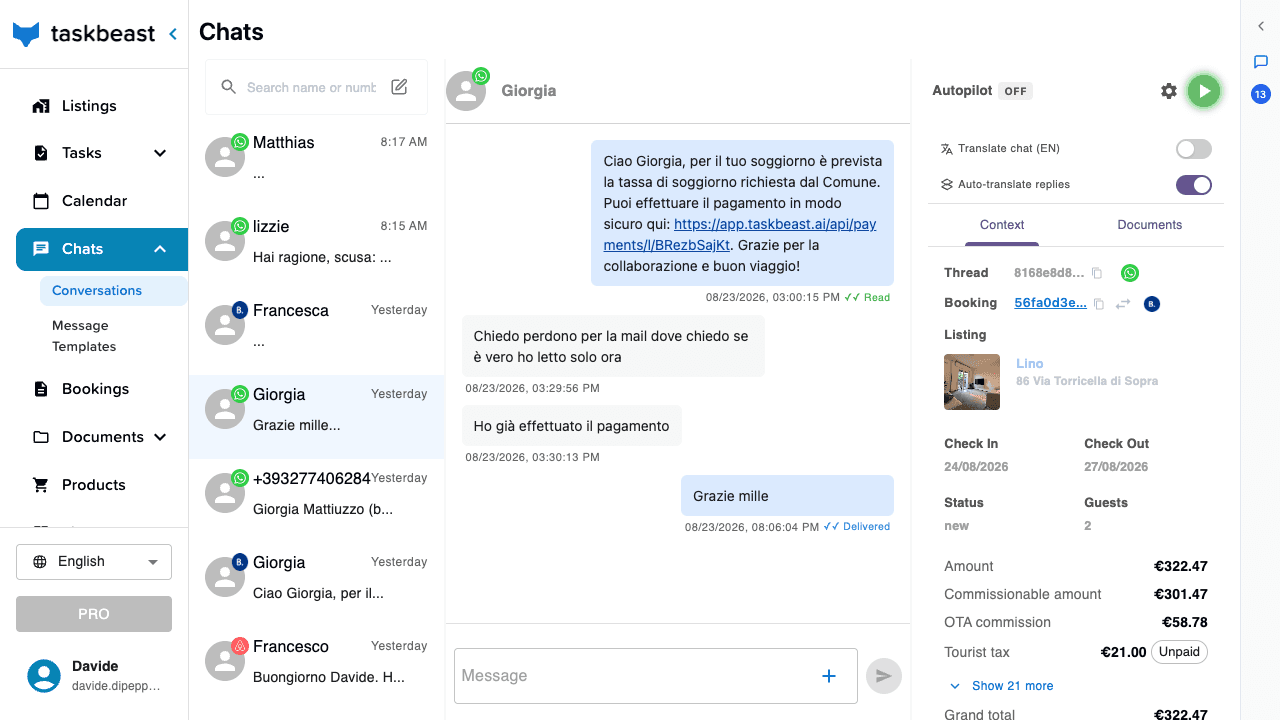
- 1Open Chats → Conversations and click any conversation.
- 2Look at the top of the right-hand panel: the word Autopilot with an ON/OFF pill next to it.
- 3Click the round button beside it to flip it: the green play button turns autopilot on, the red stop button turns it off. The change saves immediately — there is no save button.
- 4With autopilot OFF on a conversation, the assistant never sends anything there by itself: whatever it wants to say becomes a draft for you to approve.
Good to know: The switch needs an active subscription — if flipping it shows a subscription message, that is why.
The confidence slider — how sure it must be before sending
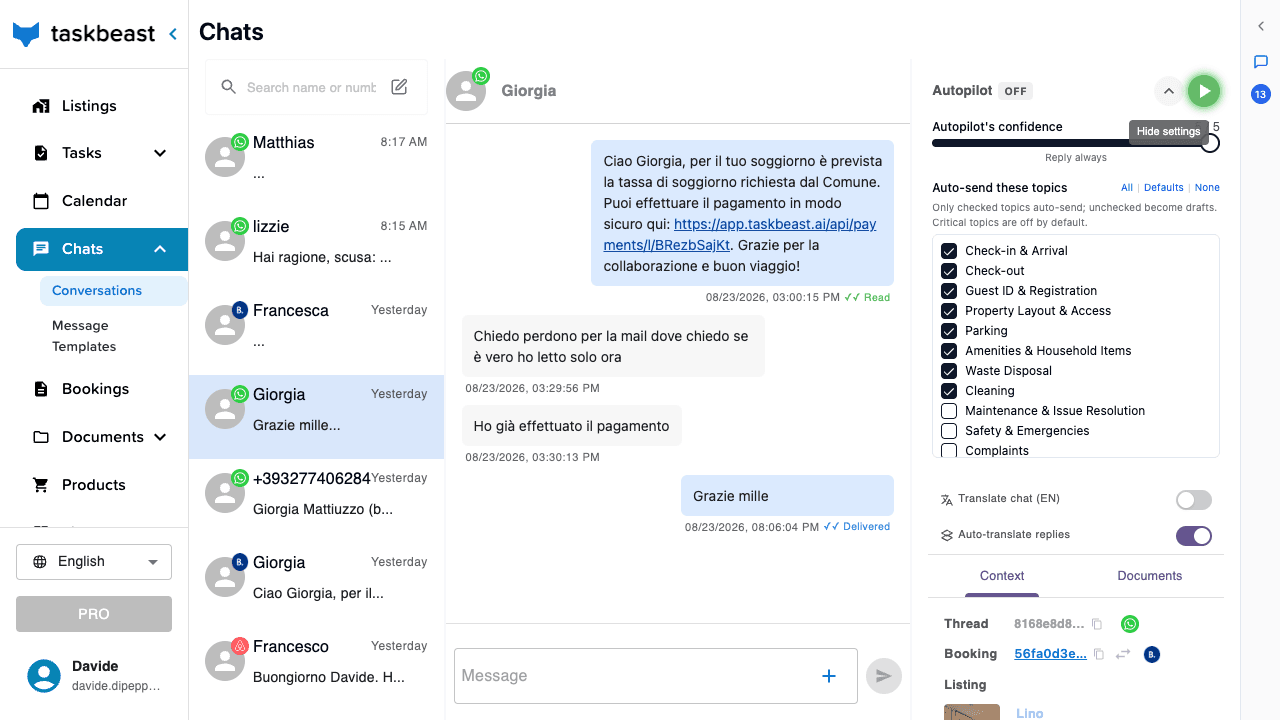
Click the ⚙ next to the autopilot switch to open its settings. The first control is a slider labelled Autopilot’s confidence, with five positions:
- Only reply if 100% confident — the assistant sends almost nothing on its own; nearly everything becomes a draft.
- Reply only when very confident
- Reply when quite confident — a good starting point for most hosts.
- Reply unless uncertain
- Reply always — the assistant answers everything it can; only real unknowns come to you.
Topic-by-topic control
Below the slider sits Auto-send these topics — a checklist of conversation topics. Checked topics can be answered automatically; unchecked ones always produce a draft, no matter how confident the assistant is.
- 1Tick the routine topics you are happy to delegate: check-in and arrival, check-out, amenities, parking, cleaning…
- 2Leave the sensitive ones unchecked. Critical topics — maintenance problems, safety and emergencies, complaints — are off by default: for those, the assistant prepares an answer but a human always presses send.
- 3Use the All / Defaults / None shortcuts at the top of the list to reset the selection.
Defaults per listing — and for every conversation at once
You don’t have to configure conversations one by one. The same panel exists at listing level, where it sets the default for every new conversation of that listing.
- 1Open Tasks → Task Manager and click the Autopilot button in the top bar.
- 2Pick the listing in the dropdown.
- 3Set the confidence and topics exactly as above — they become the default for that listing’s new conversations.
- 4Use the toggle for new conversations and the bulk on/off buttons to also switch every existing conversation of the listing in one click.
Good to know: Settings resolve from the most specific to the most general: a conversation’s own setting beats the booking’s, which beats the listing’s, which beats the property’s. So you can run a whole listing on autopilot and still switch one delicate guest to manual.
Where drafts wait for you
When the assistant decides not to send — autopilot off, low confidence, or an unchecked topic — the execution parks in Tasks → Task Manager, in the Waiting for Input column, marked Needs Approval. The card holds the exact message it wants to send.
- 1Open Tasks → Task Manager and expand Scheduled executions.
- 2Look at the Waiting for Input column — every card there is either a draft awaiting your approval or a question the assistant asked someone.
- 3Click the card to read the draft, the guest’s message it answers, and the assistant’s reasoning.
- 4Approve it to send it as-is, or edit the text first — or reply to the guest yourself from Chats; the assistant notices the conversation moved on.
Try it without risking a real guest
- 1Create a manual booking on one of your listings using your own phone number as the guest (see the calendar tutorial).
- 2Write to your Taskbeast WhatsApp number from that phone, as if you were the guest.
- 3Watch the executions appear in the Task Manager: with autopilot on you receive the AI’s answer on your phone; with it off you see the draft appear for approval.
More tutorials
Create your first automated task
Build a task from the UI, understand every option in the form, link an approved message template — or just describe the automation to the Cowork chat and let the assistant set it up for you.
Your AI co-host, one voice note away
Talk to your assistant on WhatsApp exactly like a colleague — a voice note is all it takes to send payment links, brief the cleaner or pull up your numbers.
Import your chat history and let the AI learn from it
Bring in your past Airbnb and WhatsApp conversations, have them analyzed automatically, and browse what the AI learned in the Task Learner.