
Tasks are the heart of Taskbeast automation. A task tells the AI what to do and when — “send the check-in instructions one day before arrival”, “notify the cleaner when a booking comes in”, “ask guests for a review after checkout”. Once created, tasks run on their own; you just watch the results.
Create a task
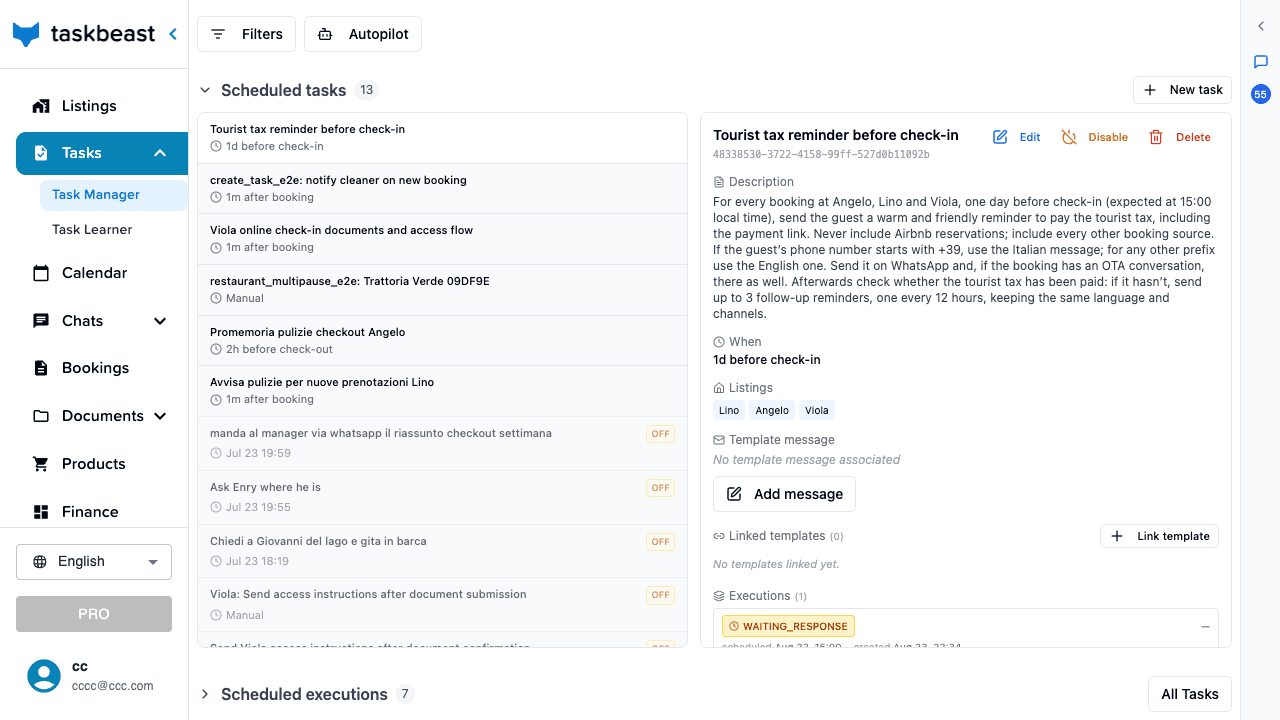
- 1Open Tasks → Task Manager in the left sidebar.
- 2In the Scheduled tasks section, click New task.
- 3The panel that opens has two tabs: Scheduled task — an automation the AI executes, the subject of this tutorial — and Assign to operator, which instead hands a one-off to-do to a member of your staff.
- 4Give the task a clear title and describe what it should do — write it the way you would brief a human assistant. The description is the AI’s instruction, so include what matters: what to send, in what tone, and what to do if nobody answers.
- 5Fill in the remaining options — when it fires, whom it contacts, which listings and bookings it covers. Every option is explained in the next sections.
- 6Click Create task. It is now live and will fire on the next matching event.
Choose when it fires
The When selector decides what makes the task fire. There are four modes:
- Relative to a booking event — the workhorse. The task fires a number of seconds, minutes, hours or days before or after one of three events: booking created, check-in or check-out. “1 day before check-in” sends arrival instructions; “2 hours after check-out” pings the cleaner. The task runs once per matching booking, automatically, for every future booking.
- Recurring interval — fires every N minutes, hours or days, independent of bookings. Good for periodic work like “every 7 days, send me an occupancy summary”.
- At a specific date and time — a one-shot task. You also choose how the date is read: as your local (browser) time or in the listing’s own timezone — handy when your apartments are in another country.
- Manual (no schedule) — the task never fires on its own; you run it yourself from the task panel when needed.
Good to know: Check-in and check-out timings count from the listing’s configured check-in and check-out times, not from midnight. With an 11:00 check-out, “2 hours before check-out” fires at 9:00 on departure day.
Choose who it contacts
- Who — the recipient of the task’s messages: the guest of each booking, or a member of your staff — manager, cleaner or handyman. Pick no specific target for tasks that don’t message anyone in particular, like a report the AI prepares for you.
- Channel — for guests you can tick WhatsApp, the OTA chat (the booking’s Airbnb or Booking.com conversation), or both — with both checked, the message goes out on every channel the booking actually has. For staff, choose WhatsApp or the TaskBeast app inbox (for coworkers with their own TaskBeast account). Email and voice calls are coming soon.
- Person — for staff roles you can tick specific people, or leave the list empty to address anyone with that role. The candidates come from the staff roster you configured on each listing, so select the listings first.
Narrow it to listings and bookings
- Listings — tick the listings the task applies to; leave the list empty to apply it to all of them.
- Booking sources — restrict the task to bookings from certain channels: Airbnb, Booking.com, Expedia, Vrbo, Direct (your own booking website) or Manual. Leave empty for any source. Example: a review request only for direct guests, since Airbnb chases its own reviews.
- Booking field conditions — fire only for bookings whose custom fields (the variables you define on the Finance page) match the values you list. A booking must match every condition; within one condition, comma-separated values mean “any of these”. Example: only fire when your “welcome dinner” field is true.
- Linked templates — optionally attach approved WhatsApp templates right away; you can also do it later from the task’s detail panel (see below).
Watch it run
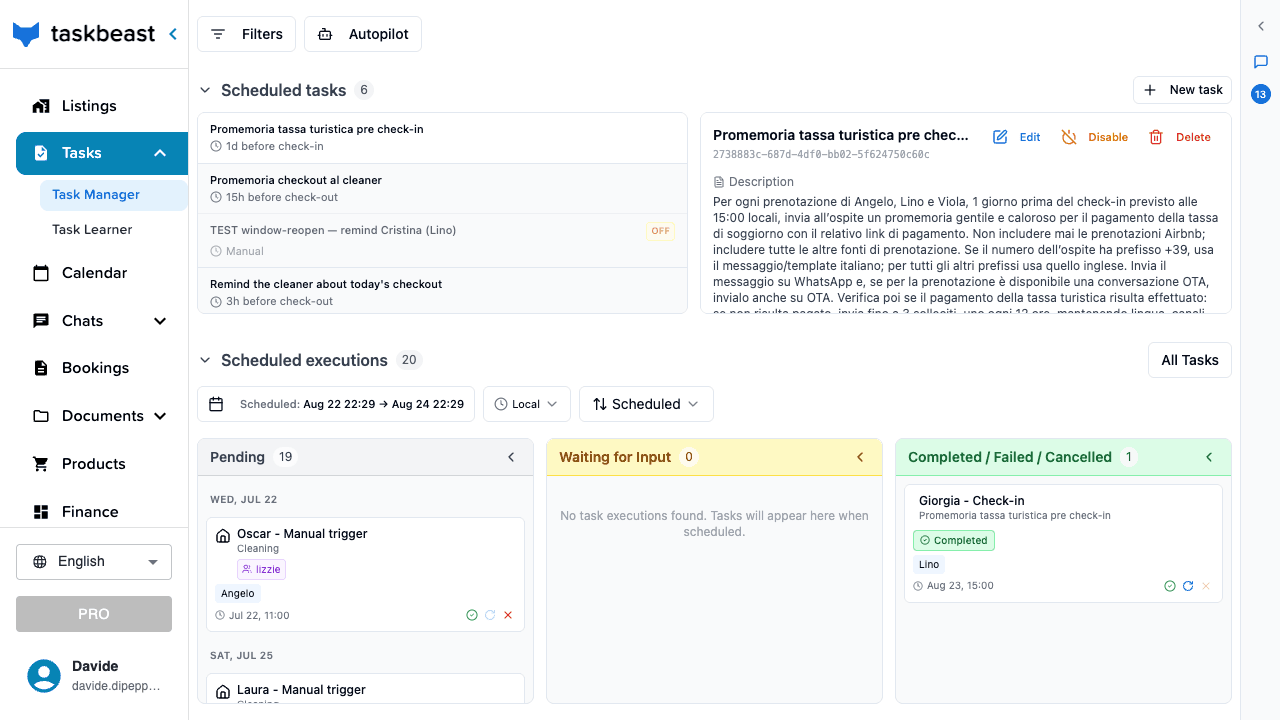
Every time a task fires, an execution appears in the Scheduled executions board at the bottom of the page, moving across three columns: Pending, Waiting for Input (the AI is waiting for someone’s reply) and Completed / Failed / Cancelled.
Click any execution card to see exactly what the AI did — which messages it sent, what it decided and why. If a task needs your input, it shows up in the Waiting column instead of acting blindly.
Link a message template
For WhatsApp, messages sent outside the 24-hour reply window must use a template approved by WhatsApp. Linking an approved template to a task guarantees it can always deliver.
- 1Select the task in Scheduled tasks and find the Linked templates section in its detail panel.
- 2Click Link template and pick an existing template — or create one on the spot.
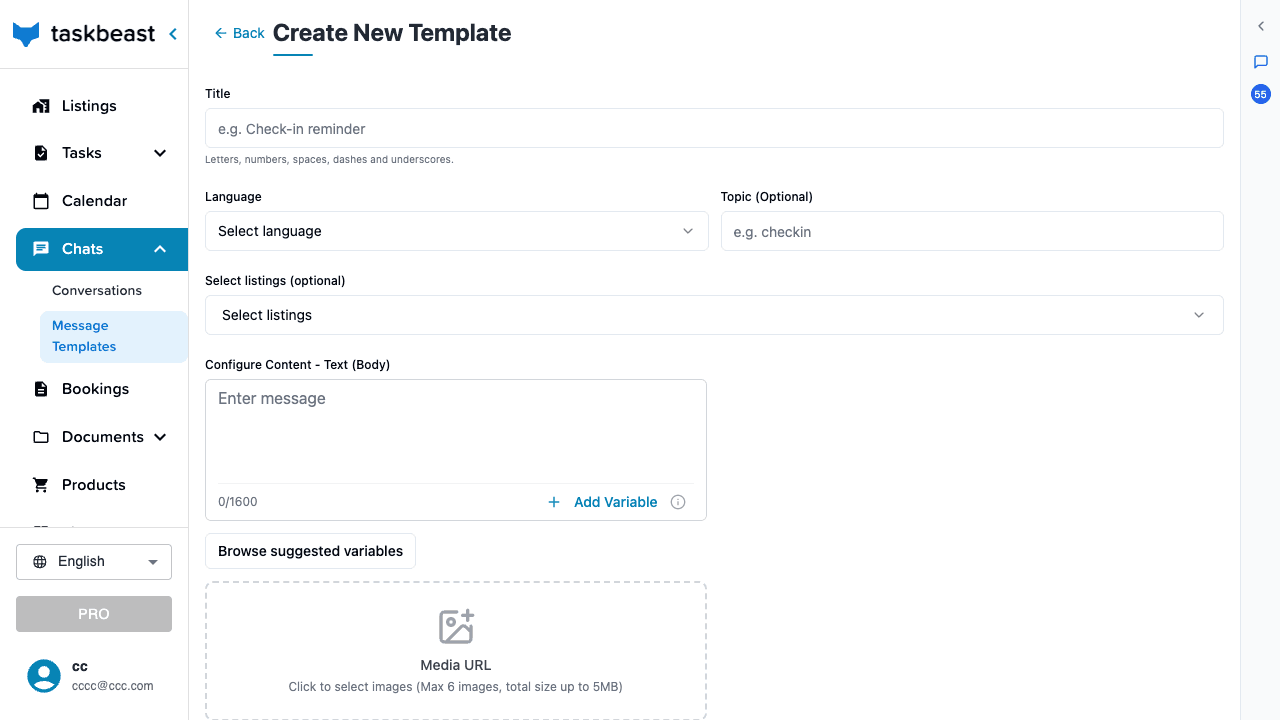
- 3To build a new template from scratch, go to Chats → Message Templates → Add Template: write the body, insert variables like the guest’s name with Add Variable, and tick Submit to Meta to file it for WhatsApp approval.
- 4Approval usually takes from a few minutes to a few hours. Once the template shows approved, the task can reach guests at any time.
Modify or pause a task
- 1Select the task and click Edit to change its title, trigger, message or listings.
- 2Click Disable to pause it without losing anything — Enable turns it back on.
- 3Click Delete only when you want it gone for good: pending executions are cancelled too.
Or just ask the Cowork chat
You don’t have to open the form at all. The Cowork chat — the assistant in the right-hand sidebar, also reachable from WhatsApp — creates automated tasks for you. Describe the automation the way you would tell a colleague: “Every Friday at 9, send me the weekend arrivals.” “Remind the cleaner two hours before every check-out at Lino and Viola.” “Ask Airbnb guests for a review the day after check-out.”
The assistant turns that sentence into a real task: it picks the right trigger and offset, the listings, the recipient and channel, and any booking-source filter — then shows you a preview of exactly what it is about to schedule and waits for your OK. Nothing is created until you confirm.
- No form, no fields — one sentence in your own words, from the dashboard or from WhatsApp, even as a voice note while you drive.
- The options are filled in for you — timings like “the morning of check-out” become the right trigger and offset, and one task can cover several listings at once.
- Deliverability is checked — if a scheduled task has no approved WhatsApp template attached, the assistant warns you and offers to link an approved one or to create and submit a new template on the spot.
- Changes work the same way — “move that reminder to 3 days before” or “cancel the review task” edits or cancels the existing task instead of piling up duplicates.
Good to know: Tasks created from the chat land in the Task Manager like any other — you can inspect, edit, pause or delete them from the UI at any time.
More tutorials
Autopilot: when the AI replies alone, and when it asks you first
Decide exactly how much freedom the AI has — per conversation, per topic and per listing — and approve every message it drafts when you keep it on a short leash.
Your AI co-host, one voice note away
Talk to your assistant on WhatsApp exactly like a colleague — a voice note is all it takes to send payment links, brief the cleaner or pull up your numbers.
Import your chat history and let the AI learn from it
Bring in your past Airbnb and WhatsApp conversations, have them analyzed automatically, and browse what the AI learned in the Task Learner.